

Gemini Notebook Interactive Sites: Build a Process Explorer
Turn approved process sources into a navigable onboarding aid, then verify every route before anyone relies on it.
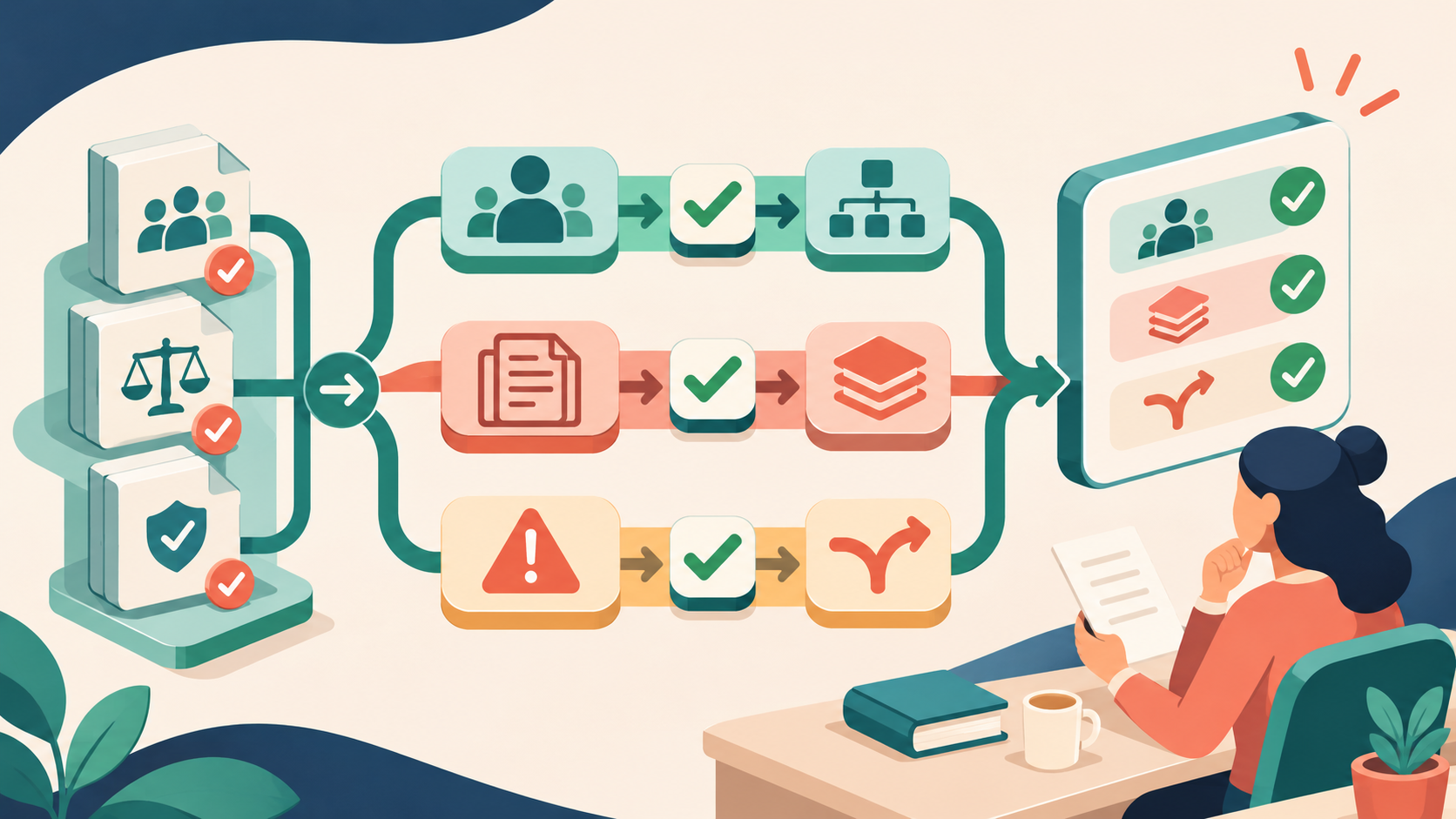
A policy folder can be complete and still be hard to use. New colleagues often need a route through roles, evidence, decision points and exceptions—not another long document. Gemini Notebook can now turn the sources in a notebook into an interactive site. That makes a process explorer possible, but the useful part is not the generated page. It is the way you limit the scope, choose trusted sources and check every path before anyone relies on it.
Google announced interactive sites on 16 November 2026. Its help page says people with edit access can ask Gemini Notebook to make a site from notebook sources, then open it in Studio, interact with it, share it under the account rules or download it. Google gives dashboards, work tools, visual narratives and project trackers as examples. Availability and sharing rules can change, so check the current help page before a rollout.
Build a process explorer, not a policy substitute
A process explorer should help someone find the next question to ask. It should not replace the approved policy, assign authority that the source does not grant or turn an unclear exception into a confident rule. Keep the source documents visible and make the explorer point people back to them. If a decision affects money, legal duties, safety, people or customer commitments, the responsible owner still decides.
The SITE method
Scope one process
Name one audience, one starting point and one useful outcome. A smaller boundary makes omissions easier to spot.
Include approved sources
Use the current policy, checklist, role map and escalation guide. Remove drafts and mark documents with unclear ownership.
Tell it the routes
Ask for navigation by task, role, required evidence and exception. Describe what the site must not infer.
Examine every path
Test normal, incomplete and exception cases. Compare each claim and decision point with the underlying source before sharing.
Worked example: supplier approval onboarding
Imagine a new procurement analyst who must understand supplier approval. The approved sources are the current procurement policy, a due-diligence checklist, a role-and-approval matrix and an escalation guide. The learner does not need a summary of all four. They need to answer: Which route applies? What evidence is required? Who can approve it? What happens when information is missing?
From notebook to checked explorer
- 1
Prepare the source set
Confirm document owners and effective dates. Exclude superseded versions. Add a short note that names the process boundary and the person who owns exceptions.
- 2
Describe the explorer
Ask for four routes: choose supplier type, show required evidence, identify the accountable role and display the escalation path. Ask the site to cite the relevant source beside each rule.
- 3
Test realistic cases
Run a standard supplier, a missing-document case and a high-risk exception. Record any unsupported rule, missing branch or misleading label.
- 4
Release with a review note
State which sources and dates were checked, who reviewed the explorer and when it must be reviewed again. Link to the full notebook only for people allowed to see every source.
A prompt that sets useful boundaries
Reading is a start. Practice makes it stick.
Start learningUse a request such as: “Make an interactive process explorer for a new procurement analyst. Use only the uploaded approved sources. Let the user choose a supplier type, then show the required evidence, accountable role and escalation path. Cite the source for every rule. If the sources conflict or do not answer a question, label the gap and direct the user to the process owner. Do not invent deadlines, thresholds or approvals.”
The final sentence matters. A generated site can make uncertain material look settled. An explicit gap state is safer than a smooth but unsupported answer.
Check the site like a workflow
Process explorer release check
- Every source is current, approved and suitable for the intended audience.
- The explorer states its process boundary and does not imply broader authority.
- Normal, incomplete and exception cases lead to the correct next step.
- Roles, thresholds, dates and required evidence match the cited source.
- A conflicting or missing rule produces a visible gap, not an invented answer.
- Sharing settings do not expose sources or inputs to the wrong audience.
- A named owner and review date appear in the release note.
Google’s help page notes two sharing details worth checking. Viewers of a shared link need access to the full notebook, and public sharing has account and ownership conditions. It also says each person sees only their own inputs on a shared site. Those controls do not decide whether the underlying sources are appropriate to share; your information owner must make that call.
Try a ten-minute prototype
- Choose one small process with three approved source documents.
- Write one normal case, one incomplete case and one exception case.
- Ask Gemini Notebook to make a site with a separate path for each case.
- Open every path and compare its roles, evidence and next step with the sources.
- Keep the prototype only if all three paths make gaps and citations easy to see.
For a smaller first step, read Use Gemini Notebook to Test One Claim Against One Source. If you need a wider control pattern, Build an AI Workflow Control Card helps teams define purpose, inputs, checks and ownership before a tool enters routine work.
The useful output is a checked route
Interactive sites can reduce the effort of exploring a dense process. They do not remove the need to curate sources, test edge cases or keep an accountable person in the loop. Start with one process, make uncertainty visible and publish only after every route has survived a source check. The result is not a prettier policy. It is a faster, safer way to find the right part of the policy when work is moving.
Sources
- Generate sites in Gemini Notebook — Google Gemini Notebook Help
- Turn Gemini Notebook sources into interactive sites — Google
Reading is a start. Practice makes it stick.
Bokili turns skills like this into ten-minute missions for your whole team, with instant feedback and progress you can see.
Start learningKeep reading

AI Training for Employees: Pause Before Recording a Meeting
Teach employees a five-part check for purpose, notice, sensitive data, approved tools and downstream use before an AI recorder joins.

Critical Thinking Is Not a Module in AI Training
Make judgement observable by adding one challenge question—and one correction—to every realistic AI practice task.

AI Training for Employees: Add Two New-Hire Checkpoints
Build AI training into onboarding with a safe first-week practice and a fresh transfer check after the new hire learns the workflow.