

ChatGPT Training for Employees: Rehearse a Shared-Project Handoff
Teach employees to limit shared context, choose chat or edit access, test the recipient view and close access cleanly.
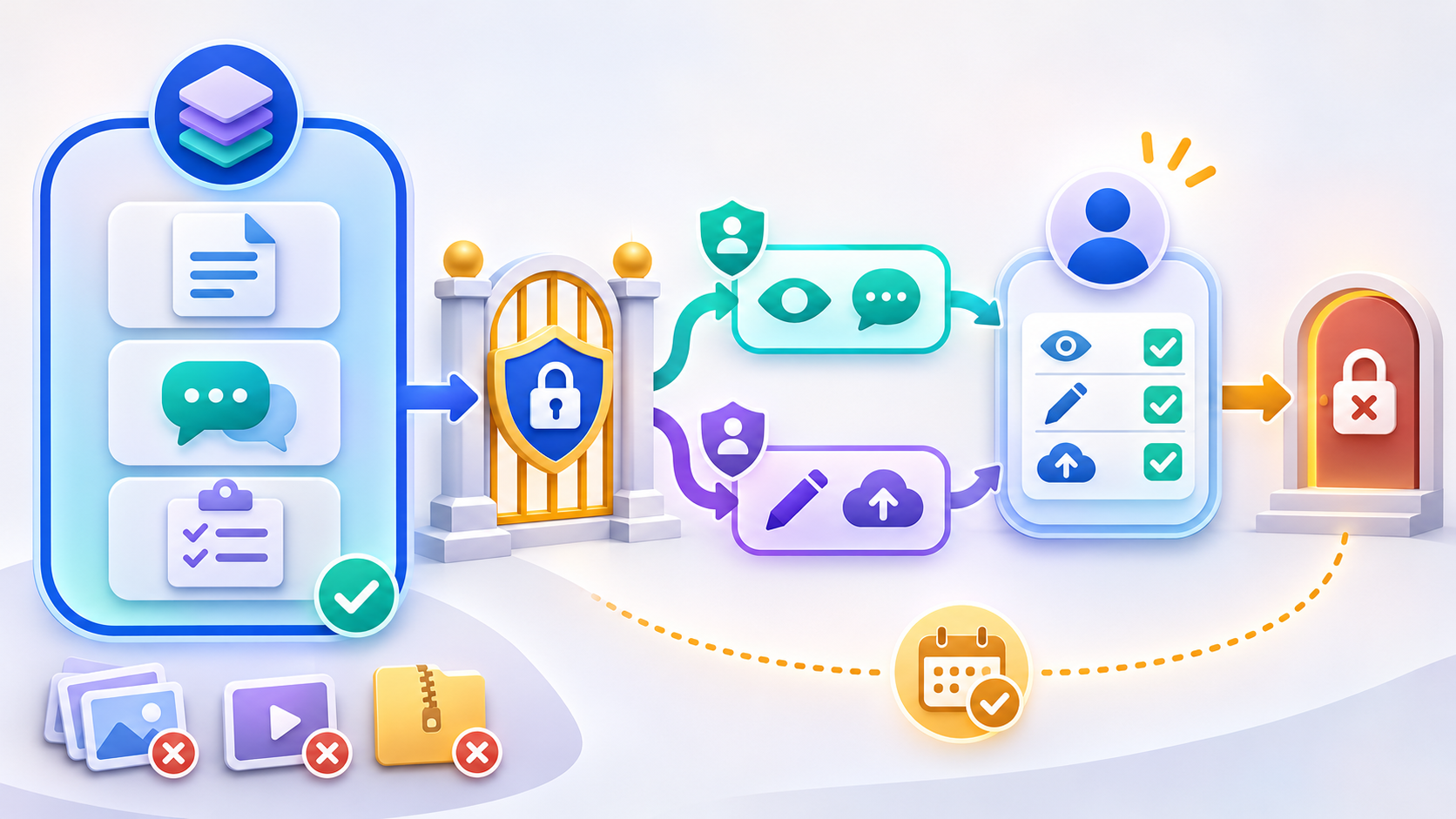
ChatGPT training for employees often starts with prompts. Shared work introduces a different skill: deciding what context another person should see and what they should be able to change. In a shared Project, chats, files and project instructions sit together. A rushed handoff can therefore expose more working material or grant more control than the task requires.
The practical lesson is simple: do not share the whole workspace by habit. Rehearse a controlled handoff. Limit the Project to relevant material, choose the least suitable access level, test the recipient view and close access when the work ends. That turns a product feature into a repeatable workplace habit.
Use SHARE for a safer shared-Project handoff
The SHARE handoff
Scope the work
Define the output, deadline and collaborator’s exact task before you change access.
Hold back extra context
Remove or avoid adding chats, files and instructions the collaborator does not need.
Assign access deliberately
Choose chat access when the person needs to work with the context; use edit access only when they must maintain the Project.
Review the recipient view
Check what the person can see, add or change, including any stronger permission inherited through a group.
Exit cleanly
At the end, remove the member or restrict the link, then record the final output in the right system.
OpenAI’s current documentation says shared Projects bring project chats, files and instructions into one collaborative space. A moved chat inherits the Project’s instructions and file context. Shared Projects use project-only memory, so the work stays inside that Project boundary, but every item placed there still becomes part of the shared working context. The boundary is useful only when the Project itself is kept focused.
Chat access and edit access solve different problems
| Permission | What the collaborator can do | Use it when | |
|---|---|---|---|
| Chat | See and interact with project chats, files and instructions; cannot invite other people. | They need the shared context to produce or review work, but do not manage the Project. | |
| Edit | Update project instructions, upload or remove files and invite others; cannot remove existing members. | They are jointly responsible for maintaining the Project, not only using its context. | |
| Group plus individual | The higher permission applies if group and individual access differ. | Check both paths before assuming the lower setting controls access. | |
| Shared link | Availability can be limited to invited people or broadened according to plan and workspace settings. | Use only after confirming who can open the link and whether that matches the task. |
The Project is the sharing boundary
A collaborator does not receive only the chat you were thinking about. They work from the Project’s available chats, files and instructions. Move or add material only after checking that it belongs in the shared scope.
Worked example: hand off a launch brief without the whole archive
Reading is a start. Practice makes it stick.
Start learningA product lead has a Project used for a launch. It contains approved product facts, a messaging guide, customer interview notes, an old pricing debate and several draft conversations. A colleague needs to produce a one-page internal launch brief. Sharing the existing Project would give that colleague far more context than the task needs.
The lead creates or cleans a focused Project with three approved files: the current product facts, the messaging guide and the launch timetable. The instructions say to cite those files, flag missing evidence and avoid inventing customer claims. The colleague receives chat access because they need to draft and ask questions, not change instructions or invite others. Before sending the invitation, the lead opens the member list, confirms there is no group with stronger access and checks the link setting.
After the brief is approved, the final document moves to the team’s system of record. The lead removes access if the collaboration is finished and reviews whether the focused Project should be retained for the next launch. The handoff is small enough to inspect and easy to explain.
Rehearse the handoff before real work
- 1
Write the recipient task
Use one sentence: “Create X from Y by Z.” If the task is vague, access will be vague too.
- 2
Inventory context
List every chat, file and instruction in the Project. Mark each one needed, optional or out of scope.
- 3
Reduce the Project
Remove extra material or build a focused Project for the collaboration.
- 4
Set permission
Choose chat or edit access from the work the person must perform, not from seniority or convenience.
- 5
Test and close
Confirm the member list, link setting and recipient actions; plan when access will be reviewed or removed.
Pre-share check
- The task and expected output are clear.
- Every file and chat is relevant to that task.
- Project instructions are current and safe to share.
- The collaborator has the lowest access that still lets them work.
- Group membership does not silently raise permission.
- The link setting matches the intended audience.
- A review or removal date is recorded.
Make access practice part of employee training
A feature tour tells employees where the Share button is. Training should also make them choose, explain and verify access. Use a harmless practice Project with dummy files. Give learners a recipient task, ask them to remove unnecessary context, select chat or edit access and explain what would make them change that choice. Then let a partner review the handoff from the recipient side.
- Create a practice Project with two useful files and one clearly irrelevant file.
- Add one instruction that defines the output and one boundary the assistant must respect.
- Choose a recipient task and decide whether chat or edit access is needed.
- Remove the irrelevant file and inspect the member and link settings.
- Explain your choice in two sentences, then name when access should end.
The goal is not to make collaboration difficult. It is to make the boundary visible. When employees can scope context, choose access, test the recipient view and close the handoff, a shared Project becomes a useful work surface rather than an uncontrolled archive. Continue with Bokili’s guides to project-only memory, saving a verified response in a Project and handling imported text safely.
Sources
- Projects in ChatGPT — OpenAI Help Center
- Using projects in ChatGPT — OpenAI Academy
- AI training for HR & L&D leaders — Bokili
Reading is a start. Practice makes it stick.
Bokili turns skills like this into ten-minute missions for your whole team, with instant feedback and progress you can see.
Start learningKeep reading

AI Training for Employees: Pause Before Recording a Meeting
Teach employees a five-part check for purpose, notice, sensitive data, approved tools and downstream use before an AI recorder joins.

Critical Thinking Is Not a Module in AI Training
Make judgement observable by adding one challenge question—and one correction—to every realistic AI practice task.

AI Training for Employees: Add Two New-Hire Checkpoints
Build AI training into onboarding with a safe first-week practice and a fresh transfer check after the new hire learns the workflow.