
Before You Upload a Screenshot to AI, Audit the Whole Frame
A screenshot can expose names, notifications, account details and private context that the AI task does not need. Use the FRAME check before upload.
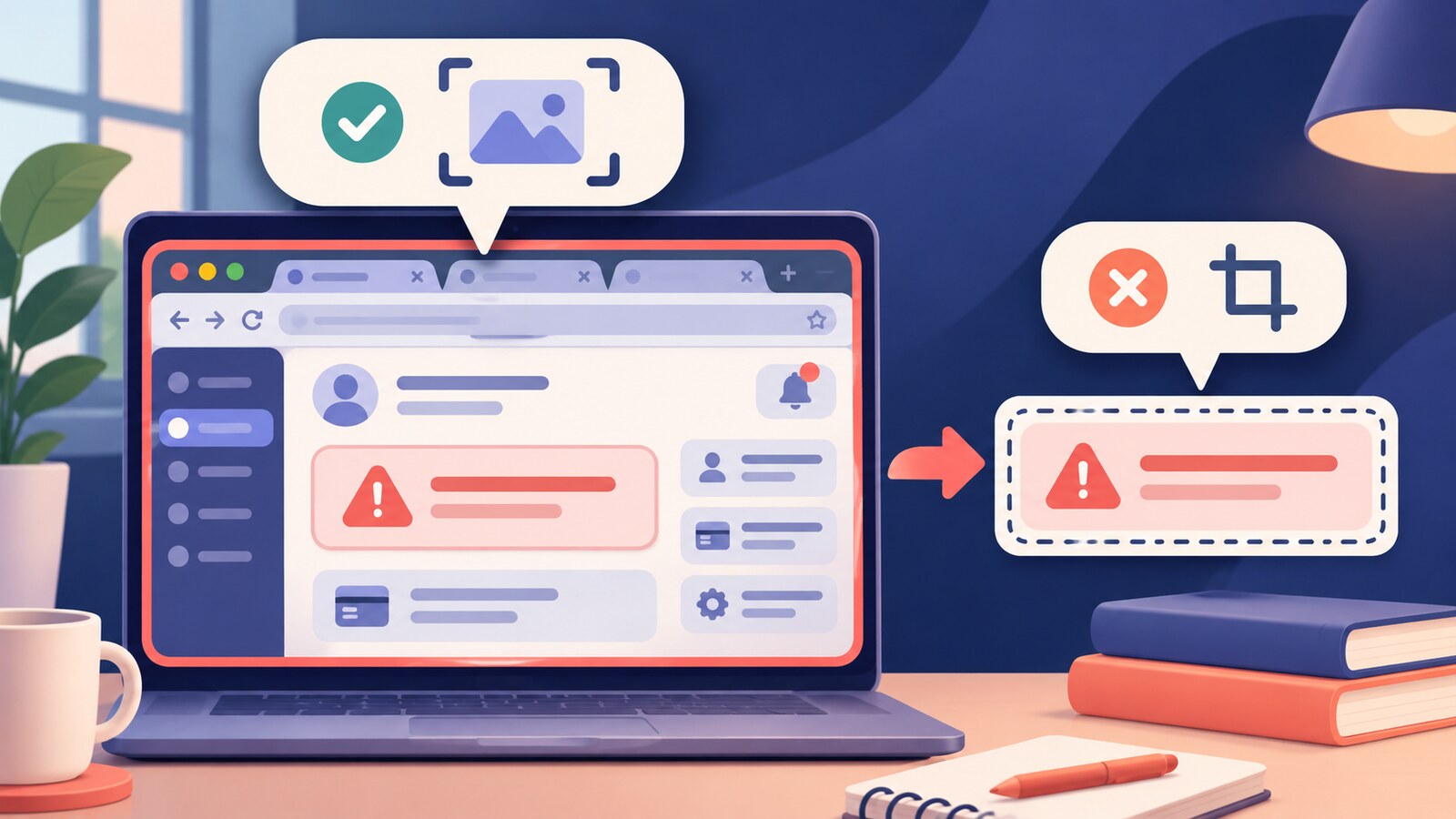
The error message is rarely the only thing in a screenshot. The same frame may show a customer name, a notification preview, browser tabs, an internal address, a user avatar or a file path. When you upload the image to an AI tool, the whole frame becomes input—not only the rectangle you want help with.
That makes screenshot handling a practical AI-literacy skill. CISA advises people not to share sensitive or confidential information with AI models. UMBC’s current guidance goes further for files and images: minimise what you upload, crop screenshots and remove unrelated names, messages, notifications and account details. The useful habit is simple: prepare a new, task-specific image instead of sending the screen exactly as you see it.
Use FRAME before a screenshot enters an AI tool
FRAME: a five-part screenshot check
Focus
Write the question the image must answer. If a pixel does not help that question, it is a candidate for removal.
Reveal
Scan the entire frame for people, messages, tabs, URLs, account details, file paths, timestamps and background windows.
Approval
Confirm that the chosen tool, account and workspace may receive this kind of information under your organisation’s rules.
Minimise
Crop first. Then redact any remaining detail that is not necessary. Prefer a small excerpt or synthetic recreation when it still answers the question.
Examine
Export a new file, reopen that exact file and inspect it at full size before uploading. Check that the task still makes sense and the removed context is truly gone.
FRAME applies data minimisation to a common work action. The UK Information Commissioner’s Office describes personal data as needing to be adequate, relevant and limited to what is necessary for the stated purpose. A screenshot audit turns that principle into an observable behaviour: show enough to solve the problem, but no more.
Worked example: a support error with customer context around it
Imagine an operations employee sees a generic export error in a fictional customer-management system. They want an approved AI assistant to explain likely causes. The screenshot also contains a customer’s name and email, a notification preview from a colleague, three open browser tabs, an internal workspace address and the employee’s avatar. None of those details helps diagnose the export error.
The employee writes the task first: explain the visible error code and suggest safe troubleshooting questions. They crop to the error panel, replace the fictional account number with a consistent placeholder and remove the address bar. They keep the product version and error code because those details affect the diagnosis. They export the edited image, reopen it and confirm that no unrelated message or identity remains.
| Unprepared screenshot | Task-specific screenshot | |
|---|---|---|
| Visible area | Whole desktop or browser window | Only the error panel and needed context |
| People | Names, avatars and message previews | Removed or replaced with clear placeholders |
| System detail | Full internal URL, tabs and unrelated paths | Only version, error code and relevant setting |
| Task clarity | AI must guess what to inspect | Question and evidence match the cropped frame |
| Final check | Upload the editor view immediately | Reopen and inspect the exported file first |
Reading is a start. Practice makes it stick.
Start learningRedaction is not the first move
Cropping often removes more risk with less work. A black box over one name does not remove the notification beside it, the account shown in the corner or the customer record behind the dialog. Start by reducing the frame to the smallest useful area. Redact only what must remain for orientation, and use stable placeholders when the relationship between fields matters.
Do not assume that a visual blur, highlight or shape has changed the underlying file. The safe operational test is to export a separate copy and inspect that copy. Keep the original in its approved location; share only the prepared derivative. If the task can be reproduced with a fictional screenshot, a typed error code or public documentation, use that safer route.
Whole-frame audit
- The task is written in one sentence.
- The tool and account are approved for the remaining information.
- Tabs, notifications, names, avatars and messages were checked.
- URLs, paths, identifiers and timestamps were checked.
- The image was cropped to the minimum useful area.
- A new exported file was reopened and inspected.
- The screenshot can still answer the question without hidden context.
Connect the screenshot check to existing AI practice
Use Bokili’s prompt data-boundary guide when the same task also needs text or document inputs: https://bokili.com/en/learn/prompt-data-boundary. Use the safe practice sandbox when a team needs to rehearse with fictional material: https://bokili.com/en/learn/safe-ai-practice-sandbox. Use the sharing-decision exercise before an AI-assisted output leaves its original audience: https://bokili.com/en/learn/ai-training-employees-sharing-decision.
- Choose a harmless screenshot from a fictional or public example. Do not use live confidential material.
- Write the exact question an AI tool would need to answer from it.
- Mark every visible detail that does not help answer that question.
- Crop to the smallest useful frame and replace any remaining identifier with a clear placeholder.
- Export a new file, close the editor and reopen the exported copy.
- Ask a colleague to name any unnecessary context that remains, then revise once.
The whole frame is the input
If a person, message, account or system detail is visible in the uploaded image, treat it as shared—even when it is unrelated to your question.
NIST’s Generative AI Profile describes privacy risks that can arise when generative systems process personal or sensitive information. A screenshot audit cannot replace approved-tool rules, security controls or legal review. It can stop a smaller, frequent failure: giving the system more context than the task requires.
Before you upload, make the frame match the question. Focus the task, reveal the surrounding context, confirm approval, minimise the image and examine the exported copy. Responsible AI use often begins with what you choose not to send.
Sources
- Stay Safe Online When Using AI — Cybersecurity and Infrastructure Security Agency
- Before You Upload — UMBC Division of Information Technology
- Principle (c): Data minimisation — Information Commissioner's Office
- Artificial Intelligence Risk Management Framework: Generative Artificial Intelligence Profile — National Institute of Standards and Technology
Reading is a start. Practice makes it stick.
Bokili turns skills like this into ten-minute missions for your whole team, with instant feedback and progress you can see.
Start learningKeep reading

AI Training for HR: Keep Health Inference Out of Absence Summaries
Train HR teams to produce a minimal operational absence summary without exposing health details, inventing causes or letting AI make a people decision.

Allocate AI Licences to Task-Ready Work, Not Waiting Lists
Use four readiness gates to allocate scarce AI access to work with an approved input, clear outcome, review owner and support route.
AI Skills for Employees: Calibrate Confidence Before Checking
Train employees to record confidence before AI advice, verify the decisive claim and learn from the gap between prediction and evidence.